Updated November 2026 · Checked against Apple's Screen Time documentation
Stop ignoring the limit.Start borrowing it.
For anyone who taps "Ignore Limit" at 11 pm and means it less each time. Three ways to hold a screen-time line, side by side.
 Time Debt · Free on iPhone
Swipe the table sideways for the Time Debt column →
Three questions to ask before choosing a screen-time limit
| Question | Built-in Screen Time | Other app blockers | Time Debt |
|---|
| What happens at the limit? | App Limits apply to the apps and categories you select. Available overrides depend on your settings. | Check how the blocker handles an active session. | A shield appears. Stop for today or open Time Debt to preview a loan. |
|---|
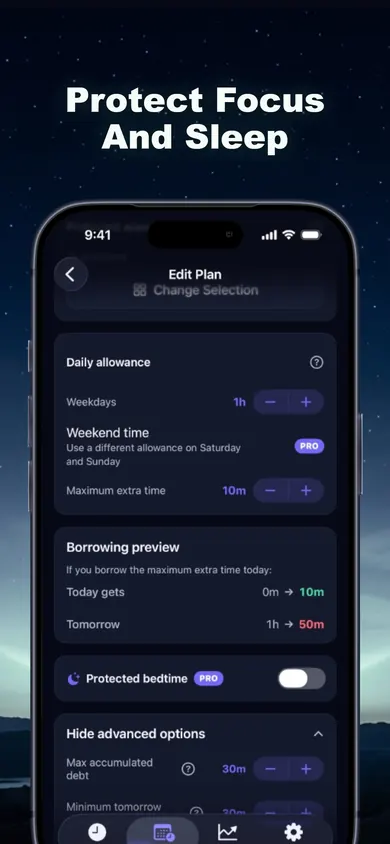
| What happens tomorrow? | Your schedule sets the next allowance. | Look for an explicit repayment rule if you want one. | Borrowed minutes reduce tomorrow’s allowance, subject to your minimum. Ending early returns unused minutes. |
|---|
| How do I regain access? | Check passcode and family settings on the device. | Check the override rules before starting a session. | Emergency Access removes Time Debt shields until tomorrow and is included in the core plan. |
|---|
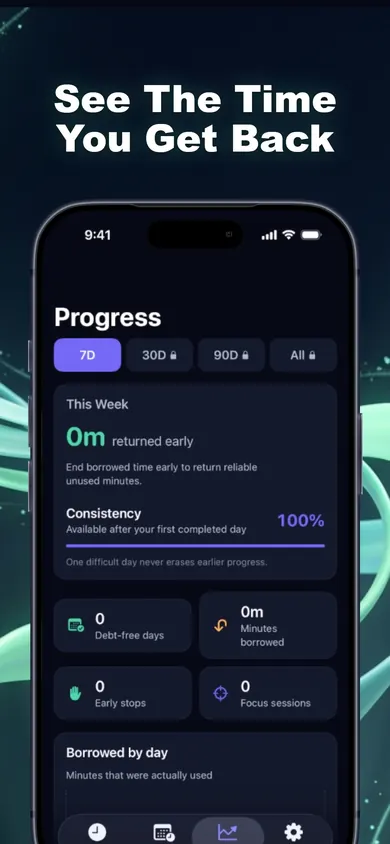
| What is included? | Screen Time is included with iOS. | Check the specific app’s listing, price and privacy details. | The free core includes one plan, blocking, borrowing, repayment and seven days of history. Additional plans, custom schedules and longer history require Pro. |
|---|
Screen Time behaviour from Apple's support guide, Use Screen Time on your iPhone, iPad, or iPod touch. "Hard app blocker" describes a category, not any named app.
Start with App Limits in Settings if you want a scheduled limit. If you want an extra ten minutes today to reduce tomorrow’s allowance, Time Debt previews both days before you confirm. If you want a fixed session with different override rules, check the rules of the specific blocker you are considering.
Screen Time: At 11:02 pm you reach an App Limit. Whether you can grant yourself more time depends on your settings.
Hard blocker: At 11:02 pm an active session blocks the chosen app. The exit and tomorrow’s schedule depend on the blocker you chose.
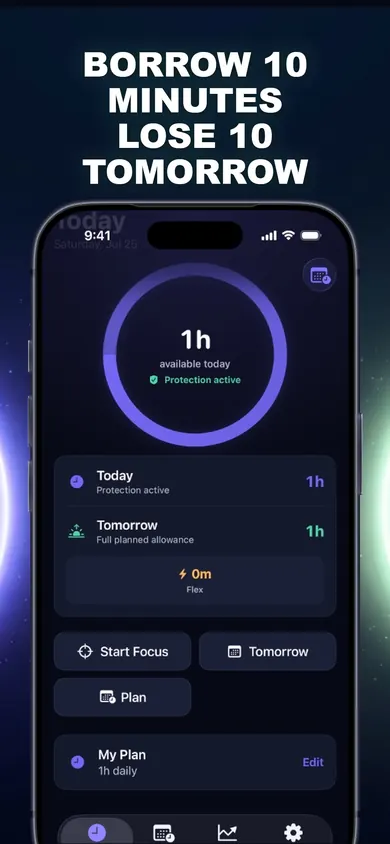
Time Debt: 11:02 pm, shield. Borrow 10? Today 1h → 1h 10m. Tomorrow 1h → 50m. Confirm. 11:12 pm, done, with a countdown on the Lock Screen. Wednesday starts ten minutes shorter, and History records it as borrowed and repaid, not as a failure.