Your phone time.
Your waking day.
What percentage of your waking hours is screen time? Divide daily phone minutes by the minutes you are awake, then multiply by 100. Four hours on your phone with eight hours asleep is 25% of your waking day.
Download on the App StoreTime Debt for iPhone · Free core plan; optional Pro subscription.
4h on your phone · 16h awake
Make it your day.
Use one day's phone usage and that day's sleep. These are editable examples, not recommended limits.
Numbers stay in this page. No account, tracking script, upload or saved history. Reloading resets them. Standard hosting logs may apply.
Use this calculator on a resource page
Educators and publishers can embed this compact calculator for free. It uses the same calculation as this page, accepts hours and minutes separately and includes an optional link to Time Debt. It does not read device usage or send entered numbers to Honest Little Apps.
Open the standalone calculator. On a site that accepts iframe code, paste this HTML:
The widget shows Honest Little Apps as its publisher. No link outside the widget is required. It loads from this hub, so ordinary hosting requests apply; entered numbers stay inside the widget. If an editor blocks iframes, use the standalone link instead. Add height if a narrow layout needs more room.
How to calculate your screen-time percentage
The useful denominator is the time you are awake. A four-hour total is one-sixth of a full 24-hour day, but it is one-quarter of a 16-hour waking day. Neither fraction tells you whether that time was useful; the calculation simply makes the scale easier to understand.
Phone share = phone minutes ÷ awake minutes × 100
Count sleep across the same 24-hour period, including a nap if you want it included. The calculator accepts hours and minutes separately so that 4 hours 30 minutes stays 4 hours 30 minutes. Do not enter 4.30 as a decimal number of hours.
| Daily phone use | Awake time | Waking-day share |
|---|---|---|
| 1 hour | 16 hours | 6.3% |
| 2 hours | 16 hours | 12.5% |
| 4 hours | 16 hours | 25% |
| 6 hours | 16 hours | 37.5% |
Start with a comparable number
Apple's Screen Time guide, checked November 4, 2026, explains how to view device-usage reports and select a device. Open Screen Time in Settings and find your activity summary. Menu labels can vary with your iOS version.
- Choose the iPhone you mean to measure. A combined report can include other devices.
- Choose a day, then enter sleep for the same 24-hour period.
- For a weekly average, use an average for both inputs. Avoid comparing a weekday phone average with a weekend sleep estimate.
- Check unusually high totals before drawing a conclusion. Simultaneous use across devices should not be added as if it were separate hours of your day.
This tool rejects phone time greater than waking time. That is a signal to check the inputs, the device filter or overlapping activity; it is not a judgment about you.
Give a smaller number a purpose
Pick a reduction you actually want to try, then choose what belongs in that space. Fifteen minutes might become a short reading break. Thirty minutes might become an uninterrupted meal. Necessary work, navigation, accessibility tools and meaningful conversations still count as screen time, so the biggest total is not automatically the least useful one.
The weekly comparison multiplies your chosen daily reduction by seven. It describes a scenario, not a prediction of time saved. If your target reduction exceeds your entered phone use, the calculator stops at zero phone minutes and uses only the reduction that is possible.
For different weekday and weekend allowances, use the weekly screen-time budget calculator. For the effect of borrowing extra minutes from tomorrow, try the borrow impact planner.
Decide before
the extra ten minutes.
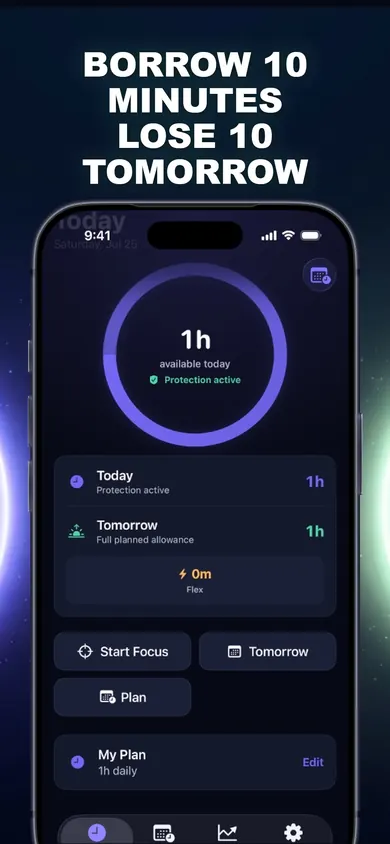
Time Debt, from Honest Little Apps, lets you set an allowance for selected apps and deliberately borrow extra minutes from tomorrow. The current App Store listing, checked November 4, 2026, describes:
- A core plan with app blocking, borrowing, automatic repayment and seven-day history.
- A preview of tomorrow's adjusted allowance before you confirm a borrow.
- Free emergency access to remove Time Debt's shields until tomorrow.
Pro is optional and adds features including multiple plans and longer history. This web calculator does not read your iPhone, set a limit or sync with the app. If a simple reminder is enough, you may prefer Apple's built-in Screen Time. Time Debt is a voluntary planning tool, not treatment.
Download on the App StoreOpen on your iPhone
On another device? Scan with your iPhone Camera, then tap the link.

Open Time Debt: Screen Time on the App Store
The code opens the App Store. It does not transfer entries or results from this page.
Questions about the result
Is 25% a good or bad score?
It is a fraction, not a score or diagnosis. The purpose of the time and what you would prefer to do matter. This page does not set a universal healthy limit.
Does the calculator measure my screen time?
No. You enter the numbers. It does not connect to Screen Time, request device permissions or collect your app history.
Does the weekly result mean I will gain free time?
No. It shows seven times the daily reduction you choose. What happens to that time depends on your actual behaviour and commitments.
Will Time Debt block every distraction permanently?
No. It works with Apple's Screen Time permissions for apps you select. Emergency access is available, and the device owner can withdraw permission in Settings.
More practical screen-time tools
- Screen Time Borrowing Calculator: See Tomorrow’s TradeoffPreview a simple screen-time borrowing tradeoff. Set an allowance, minimum floor and borrowing cap; see extra time today and what remains tomorrow.
- iPhone Screen Time vs app blockerBuilt-in Screen Time limits, a hard app blocker, or borrowing time from tomorrow: a side-by-side, a three-tap quiz, and where each one breaks at 11 pm.
- How to stop ignoring your screen time limit (6 steps)How to stop ignoring your screen time limit: replace "Ignore Limit for Today" with a 10-minute loan you repay tomorrow. Six steps with real screens.
- Screen-Time Number Detective27 worked scenarios about durations, percentages, overlapping sessions and careful interpretation of screen-use records.
Useful for someone else?
Share the public guide. Your entries and results are not included.
Open the public guide link